
Adobe’s newest Photoshop AI controls are less about generating a whole image and more about proving which pixels are allowed to change. Instruct Edit with Masks and the AI Assisted Editor make selection discipline part of the prompt workflow.
Adobe announced the Photoshop additions on August 27. Instruct Edit with Masks combines a prompt with a selected region. AI Assisted Editor, in beta, provides prompt-led and guided actions including Prompt to Edit, Remove Background, Expand, Remove, Fill, Upscale and AI Markup. Prompt edits are placed on generative layers.
A mask turns intent into a visible boundary
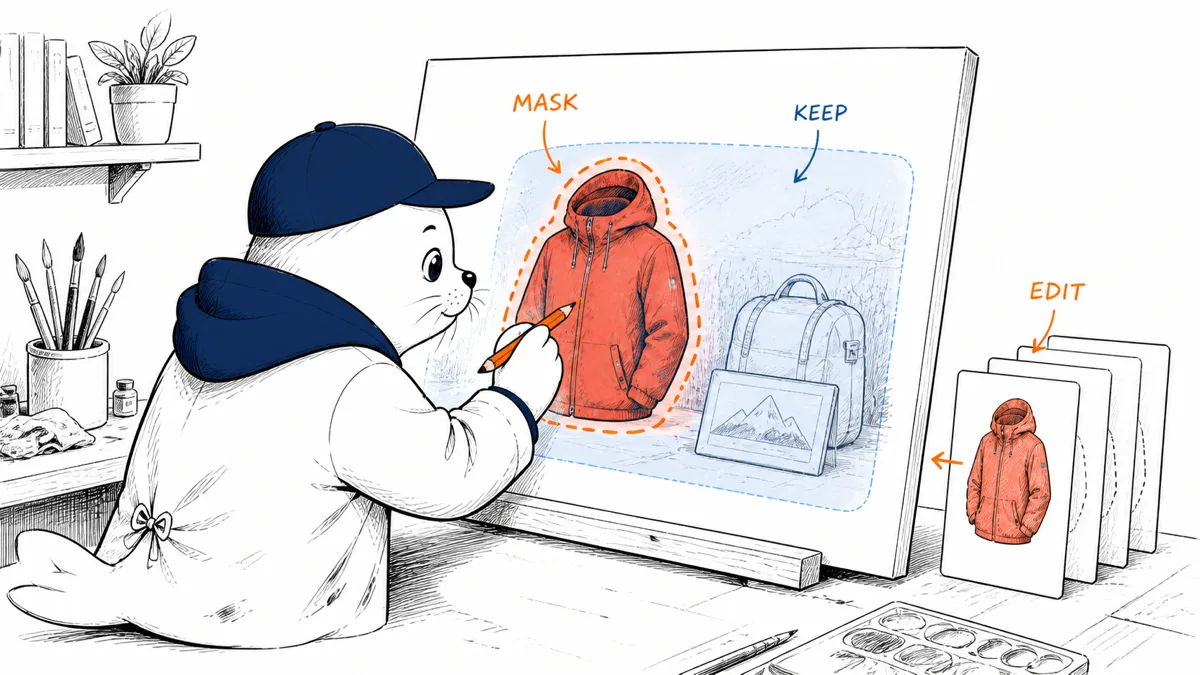
A text instruction such as "replace the jacket with red leather" does not say whether the model may alter the face, hands, lighting or product label. A mask supplies spatial scope. Adobe says Instruct Edit with Masks keeps the unmasked region unchanged.
That is a company claim to test on the files that matter. Compare untouched pixels, edges, color spill and metadata after the edit. A visually similar background can still contain changed pixels that matter to compositing or brand review.
Generative layers make review easier
Putting prompt edits on generative layers preserves a more legible editing trail than flattening the result into the base image. A reviewer can isolate the AI contribution, adjust opacity, mask it further or remove it without reconstructing the original.
- Keep the source layer locked.
- Name each generative layer with the requested change.
- Preserve the mask used for the edit.
- Record the prompt and chosen output.
- Export a flattened delivery only after review.
AI Assisted Editor is a workflow router
The beta assistant can interpret a request and route it to editing actions. That can reduce tool hunting for occasional users. It also means the same sentence may select an operation, generate content and modify a document structure.
| Action | Review before accepting |
|---|---|
| Remove Background | Hair, translucent objects and edge contamination |
| Expand or Fill | Perspective, repeated textures and invented objects |
| Remove | Shadows, reflections and reconstructed detail |
| Upscale | Fabric, skin, text and false detail |
| AI Markup | Whether the interpreted region matches the annotation |
The best test is a protected-region audit
Build a five-image set containing a face, product label, logo, hard edge and translucent subject. Apply a small masked change to each. Use a difference blend or pixel comparison to inspect the protected region, then evaluate the seam at normal viewing size.
Our Adobe Express AI Assistant review describes the broader routing issue: assistants can pick a model or tool, but creators still need visible checkpoints. Our AI image comparison helps match generation tools to text, realism, illustration and production jobs.
Beta status belongs in the file policy
AI Assisted Editor is a beta. Teams should expect interface, model-routing and output behavior to change. Store the application version and edit method with important assets. Confirm commercial, privacy and generative-AI terms for the account and content rather than inferring them from the Photoshop brand.
Create a change packet for every approved asset
A production handoff should contain the untouched source, layered working file, prompt, mask, selected generation, application version and final export. If brand or legal review asks what changed, the editor should be able to isolate the generative layer and show the protected region without recreating the session.
For teams, add a short reason for using generative editing and the reviewer who accepted it. That record is more useful than a generic "AI used" label because it identifies the actual transformation and the person who checked it.
Measure edge quality and semantic preservation separately
A clean mask edge can surround the wrong object, while a semantically correct edit can leave halos. Score both. For people, inspect identity, skin texture, hands and clothing boundaries. For products, inspect shape, printed claims, trademarks, reflections and color accuracy. For illustrations, look for line-weight and style drift.
Run the edit at least three times with the same instruction to understand output variance. If only one result preserves the protected content, the workflow needs a selection budget and a human checkpoint rather than being treated as deterministic automation.
Use assistants for routing, not final authority
AI Markup and Prompt to Edit can shorten the path from intent to tool. Keep the final judgment with an editor who can compare against the brief and source. The assistant does not know which tiny logo, serial number, face or regulatory label carries disproportionate risk.
When the design will be printed, review at output size and color profile. When it will be animated, test the edited asset through the motion workflow; a still image can hide edges that flicker once transformed.
Build one approved example for each recurring job (product recolor, background removal, portrait cleanup and canvas expansion) and keep it beside the checklist. Concrete reference files help reviewers distinguish an acceptable generative edit from a result that merely looks polished on first inspection.
Refresh the examples when Adobe changes the beta or underlying model behavior.
My verdict: prompts need masks and layers
The strongest part of this update is not conversational editing. It is the combination of a visible selection boundary and a removable generative layer. That makes an AI edit easier to inspect, reproduce and reject.
Use the assistant to reach the tool faster. Use masks, layers and a protected-region test to decide whether the result is production-ready.
Read Adobe’s announcement
- Read Adobe’s Photoshop AI controls announcement.
Checked August 29, 2026. Feature names, beta status, mask behavior and generative-layer workflow come from Adobe. Audit methods and production recommendations are Musthave.ai analysis.