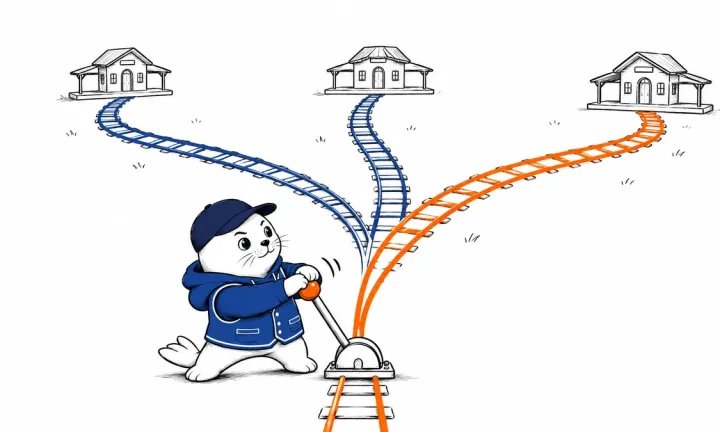
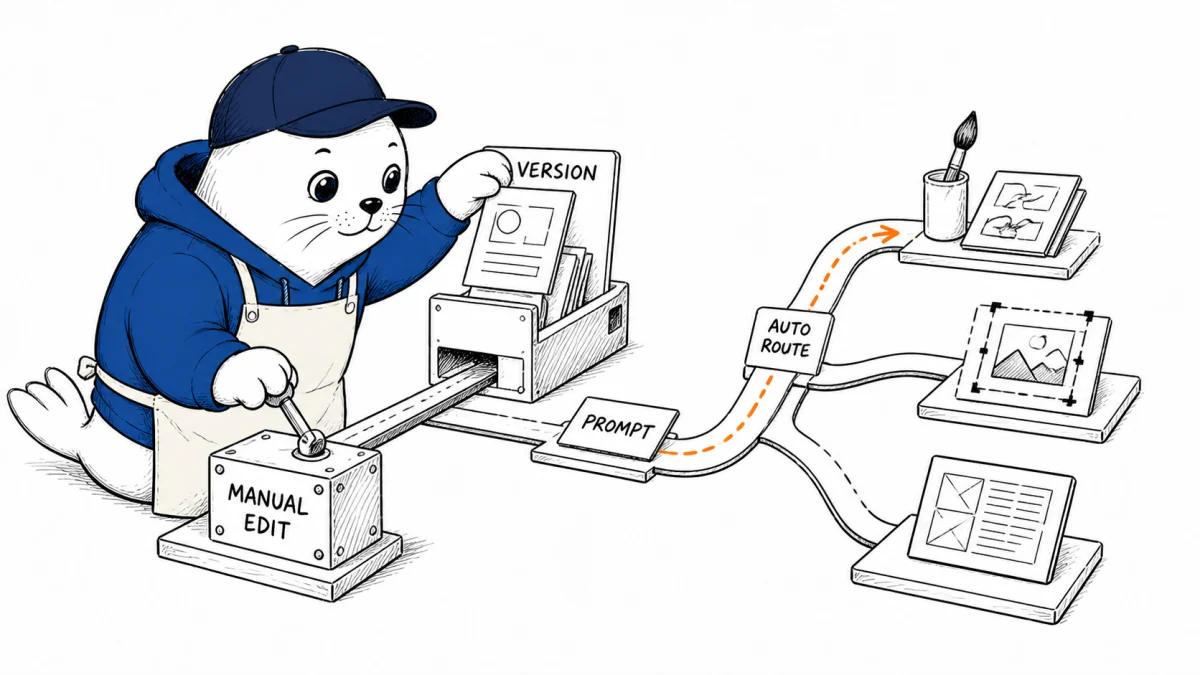
The useful surprise in Adobe Express AI Assistant is not that you can type "fix the layout." It is that Adobe may send that instruction to a different model than the one you expected, and does not give you a model picker.
Adobe Express AI Assistant is a desktop beta that can create a design, change individual elements, restyle a photo, repair spacing and alignment, and make some video edits from natural-language instructions. Adobe says the assistant combines Firefly with third-party models, then automatically selects what it considers the best model for the task. The named image partners are Google’s Gemini 2.5 Flash Image and Black Forest Labs’ FLUX.1 Kontext.
That routing removes a technical choice, but it does not remove the need for design judgment. A prompt can change more than the user intended. A different model may interpret a brand color, face, product edge, or layout constraint differently. The practical workflow is therefore simple: save a version before every consequential prompt, inspect the result at full size, and keep manual editing close.
What Adobe Express AI Assistant can do now
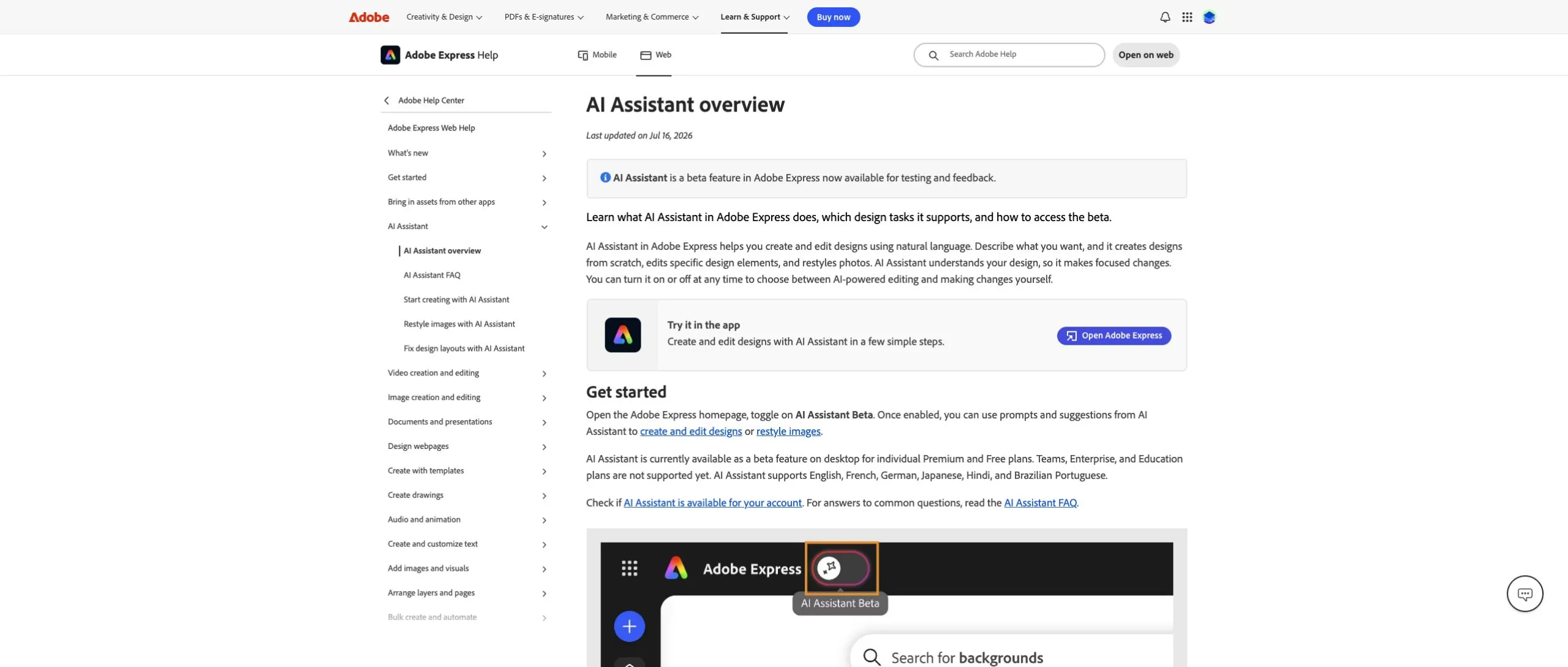
The beta sits inside Adobe Express rather than in a separate chatbot. You toggle it on, describe a design or edit, and review the result on the canvas. Adobe’s official overview lists three broad jobs: start a design, edit elements without disturbing the rest of the composition, and edit or restyle images. Its examples include replacing a blazer, creating a studio product photo, fixing a layout, and adjusting audio in a single-scene video.
This is broader than a pure image generator. It is an intent layer over a design document. The assistant can act on a layer, several assets, or the arrangement around them, then hand the result back to Adobe Express for manual work. That makes it closer to a junior production partner than a blank prompt box.
- Create: begin with a description or a relevant template.
- Edit: change specific elements or several assets while keeping the document editable.
- Restyle: transform a photo with a prompt or a preset, then refine it manually.
- Repair: ask the assistant to improve spacing, alignment, and overall layout.
- Video: make supported edits such as adjusting audio in a single-scene project.
The model picker is automatic
Adobe says AI Assistant uses Firefly and partner models, chooses among them automatically, and does not let the user select one manually. Gemini 2.5 Flash Image is described as useful for prompt accuracy and prompt-based editing. FLUX.1 Kontext is positioned for professional, high-resolution image generation. Adobe does not publish a routing table that tells users which prompt went where.
That is convenient for someone who wants a result instead of a model comparison. It is less convenient when a team needs repeatability. If the same instruction can be routed differently as Adobe changes the service, a saved prompt is not a complete production record. Keep the source file, the pre-prompt version, the exact prompt, and the exported result together.
| Task | What the assistant may do | Control to keep |
|---|---|---|
| Create a new visual | Select a model and generate a starting design | Save the brief, prompt, and first accepted version |
| Replace or restyle an image | Regenerate pixels inside an existing composition | Check faces, product geometry, text, and license-sensitive inputs |
| Fix a layout | Change spacing, alignment, or arrangement | Compare against brand rules and mobile/export sizes |
| Rewrite text | Generate replacement copy | Recheck facts, claims, tone, and legal wording |
| Adjust a video scene | Apply a supported edit such as an audio change | Watch the full export, not only the edited moment |
Availability is narrower than the feature list
The beta is available on desktop to individual Free and Premium plans. Adobe says Teams, Enterprise, and Education plans are not supported. Access is gradual, so an otherwise eligible account may still see a "coming soon" message. Supported languages are English, French, German, Japanese, Hindi, and Brazilian Portuguese.
Free does not mean unlimited. Adobe’s FAQ says Free accounts receive a limited number of generations per day. Generating an image or template, removing or inserting an object, using Resize with Expand, and rewriting text can consume that allowance. Ordinary manual edits, non-premium content search, some image edits within an existing image, text effects, and animations do not.
The assistant is not the whole editor. Use generation for the expensive change, then finish the small corrections with deterministic tools.
A five-step checkpoint workflow
- Duplicate the page or save a named version. Do this before prompts that touch the composition, product, face, brand asset, or approved copy.
- State what must not change. Name the locked elements as clearly as the desired edit: "change the background; keep the product, label, crop, and headline unchanged."
- Inspect the changed area and its neighbors. A clean background replacement can still bend a product edge or alter nearby type.
- Finish with manual tools. Restore exact colors, spacing, masks, and copy with controls that do not introduce another generative pass.
- Export and review the deliverable. Check the actual PNG, PDF, or video at its destination size, including bleed, transparency, audio, and legibility.
This is the same reason our AI image-tool comparison separates generation quality from production readiness. A beautiful draft is not yet a print file, product photo, or reusable campaign system. Our product-image workflow adds the checks that matter when a visual represents something a customer will actually receive.
What the beta does not promise
Adobe says the assistant is not a conventional conversational chatbot. It does not retain memory of earlier sessions, learn from past projects, or personalize itself to the user. Prompt history is useful inside the current session, but it is not a durable brand memory. A team still needs a real brief, approved assets, naming conventions, and an external record of what shipped.
It also does not support every Adobe Express feature. The beta can suggest a tool or hand control back to the editor when a request falls outside its supported actions. That boundary is healthy. Generative editing is strongest when it sits beside predictable controls rather than replacing them.
For a source image, Adobe’s restyle guide sets a 20 MB maximum. Its layout guide shows the assistant improving alignment and spacing. Neither is a substitute for checking the final deliverable against its channel’s requirements.
Where Adobe Express fits in an AI Design stack
Specialist generators still matter. Midjourney and Ideogram expose different creative strengths. Video systems such as Seedance, Flow, and Grok Imagine tackle motion and continuity problems that a general design editor does not solve in the same way. Adobe Express AI Assistant’s advantage is orchestration: it brings generation, editing, layout, and export closer together for people already working inside a design document.
That is why this article opens Musthave.AI’s new AI Design section. The archive groups our image, video, editing, and creative-production coverage without erasing the specialist Generative Images and Generative Video archives.
Verdict: let Adobe route, but keep the checkpoints
Adobe Express AI Assistant is most useful for people who think in outcomes such as "make this product image cleaner," "fix this layout," "restyle this photo," and do not want to choose a model first. Automatic routing makes that experience simpler. It also makes versioning more important, because the model choice is outside the user’s control.
Try the beta on a duplicate, not the only approved file. Use it for the large transformation. Use manual controls for the last exact mile. Then review the export as if the assistant had never seen your brand rules, because according to Adobe, it does not remember them from a previous session.
Source note: product behavior and eligibility come from Adobe’s documentation checked Aug. 15, 2026. The checkpoint workflow and stack placement are Musthave.AI analysis. Review Adobe’s current generative AI user guidelines before using generated material in client or commercial work.
If your design workflow starts in Claude, read our Claude Design integrations guide before connecting Adobe. It maps what belongs in Claude Design, a connector, a skill, a plugin, or Claude Code.

Abdessalam Alaoui
I'm Abdessalam Alaoui, founder of Musthave.AI. I write practical guides to AI models, tools, generative media.