
Adobe has added one-click video background removal to Firefly’s browser editor. The speed is useful, but the first frame and the hidden full clip still decide more than the toggle suggests.
Adobe Firefly video background removal is rolling out in the Firefly video editor beta. Select a clip on the timeline, open the Background panel, choose Remove background and Firefly identifies one or more subjects from the first frame of the selected portion. It then removes the background through the clip and replaces the original on the canvas with the processed version.
What the new Firefly control actually does
The feature is a browser-based isolation step inside Firefly’s editor. Adobe documents a simple workflow: add a video to the timeline, select the clip, open Background, click Remove background and wait for processing. The result can be compared with the original, combined with a replacement layer and exported as an MP4.
This removes several manual steps from a common social-video workflow. It does not turn every shot into a perfect cutout. Hair, motion blur, semi-transparent objects, fast camera movement and a subject that leaves the frame are still the kinds of edges an editor should inspect at full resolution.
The first frame is the real instruction
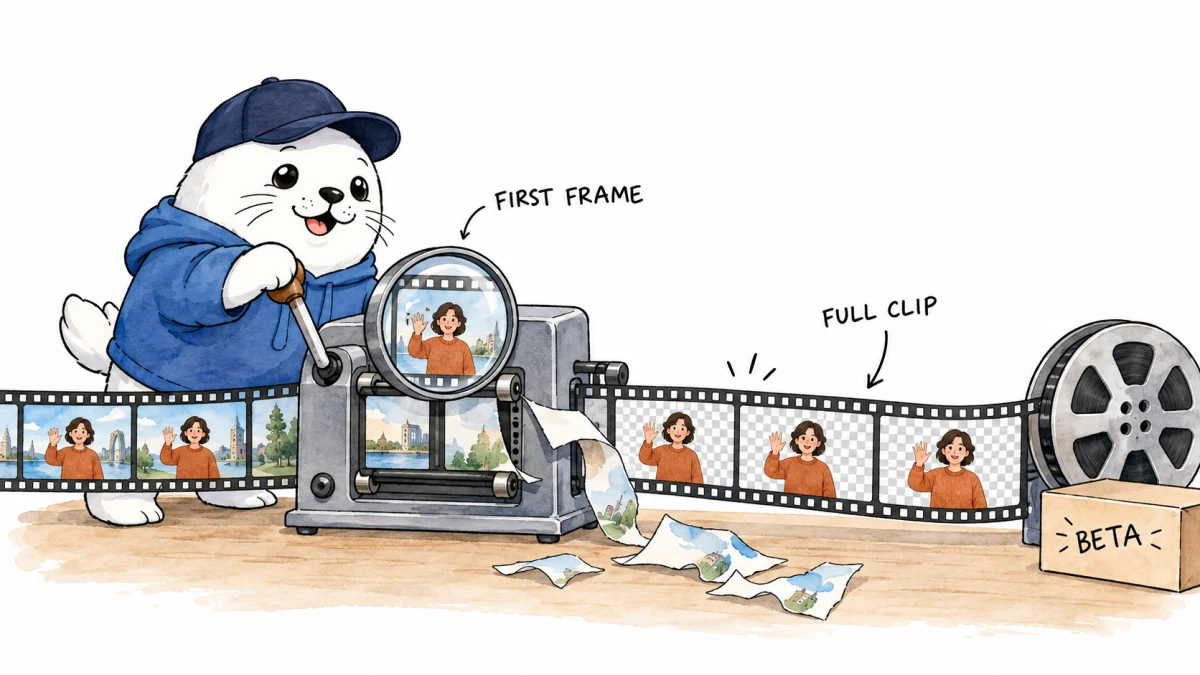
Adobe says the tool identifies subjects from the first frame of the selected portion. That makes the opening frame a practical control surface. If the main person is hidden, small, overlapped or absent there, trim to a clearer starting point before invoking the feature. The first frame should show the complete subject with useful contrast from the background.
A good test clip begins with a stable pose, then adds movement and occlusion. Review the processed result at the start, middle and end. The feature may correctly select a subject at frame one and still lose an arm, prop or strand of hair later.
The trimmed-clip catch
The most important documentation detail is easy to miss: if a clip is trimmed, Firefly uses the first frame inside the trim to identify the subject, but Adobe says it still processes the entire underlying clip. A short visible segment can therefore take longer than its timeline duration implies.
For a large source file, make a short derivative before uploading if you only need one segment. That reduces unnecessary processing and makes the intended subject boundary easier to test. Keep the original file outside the editor so a failed isolation does not become the only working copy.
A six-step workflow for cleaner results
- Choose a clear starting frame. Place the trim where the complete subject is visible.
- Remove only after the edit is stable. Avoid processing footage that will immediately be replaced.
- Compare the original. Use Firefly’s comparison control to find missing edges and unwanted retained areas.
- Add a contrast layer. A bright temporary color behind the cutout makes halos and holes easier to see.
- Check motion, not only stills. Scrub through fast movement, crossings and objects held in front of the body.
- Export a short proof. Review the MP4 in the delivery player before processing every asset.
Where it fits beside rotoscoping and green screen
Automatic isolation is strongest when a creator needs a quick background swap, a talking-head cutout or a draft composite. A controlled green screen remains easier to reproduce across many clips. Manual masks and rotoscoping remain useful when edge fidelity, frame-by-frame control or unusual transparency matters.
The best choice depends on the cost of a bad edge. A rough social clip can tolerate a small halo that a product advertisement cannot. Our earlier look at the Adobe Firefly unified workspace explains the surrounding timeline, while our AI video generator cost comparison helps place processing time and output needs in a wider tool decision.
The editor is still a beta
Adobe labels the Firefly video editor as beta and describes it as a testing and feedback environment. That status should affect production planning. Save source files, export intermediate versions and avoid building a deadline around one undocumented edge case. Interface labels and behavior can change during the preview.
Adobe has not published an independent quality score or a supported-shot matrix for the background removal control. The responsible claim is that the feature automates the first isolation pass, not that it replaces professional keying for every clip.
Who should try it first
Social teams, educators, solo creators and marketers with clean single-subject footage have the clearest first use case. Test with a ten-second clip before committing a long source. Teams working with customer footage should also confirm their upload, consent and retention rules before sending media to a cloud editor.
The practical verdict
Adobe Firefly video background removal compresses a familiar compositing step into one control, and its compare and MP4 workflow make it approachable. The real operating rule is to give it a strong first frame and remember that a trim does not limit processing to the visible segment. Treat the result as a fast first pass, inspect motion carefully and keep a manual fallback for difficult edges.
Read the primary record
Firefly continues to add production features, and Adobe now owns Topaz Labs. The Topaz integration roadmap explains what is already connected and what remains future-looking.
Checked September 18, 2026. Feature behavior comes from Adobe’s first-party documentation. Workflow recommendations and limitations are MustHave.ai analysis.