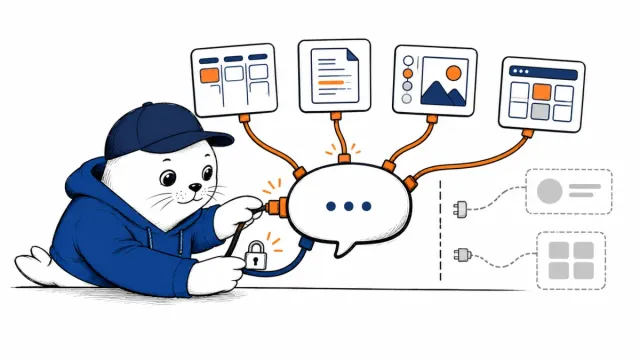

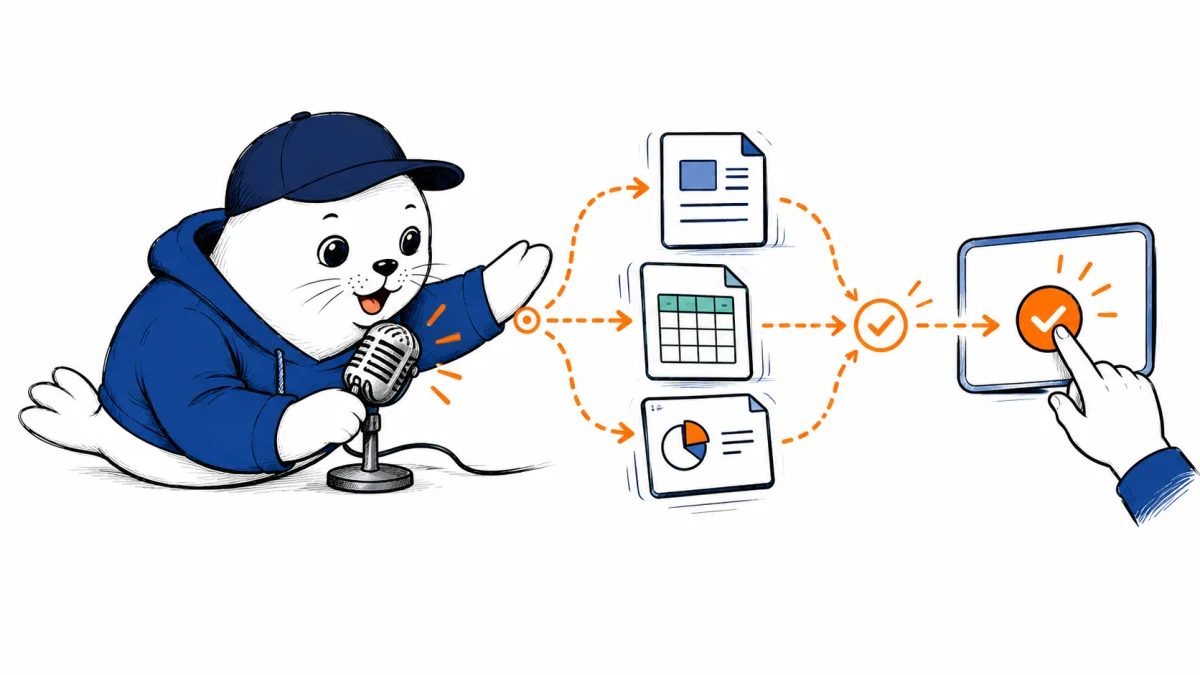
You can ask an assistant to create a document while you walk away from your desk. The harder question is which parts of that task still need you to look at a screen.
OpenAI’s September 23 update lets ChatGPT Live Voice use the plugins and connected apps available to an account on web, iOS and Android. Voice also works in ChatGPT Work on web and mobile: a spoken request can start a document, presentation, spreadsheet, or browser task. If the Work continues after the call ends, the task can carry on in text. This expands Voice’s workflow, not a new permission to act without review.
What changed in ChatGPT Voice
Live Voice can now use a connected app during a conversation, subject to the same connection and workspace rules that apply in text chat. You can speak a request, follow the written response in the chat, and move between speaking and typing. Free and Go users can use Voice in Chat with the plugins their plans support. Voice in Work requires access to both Voice and Work.
The Work addition is more consequential than a voice command for a single answer. OpenAI says a user can ask Work to create files or operate a browser while talking, then leave an unfinished task running in text after the call ends. That makes Voice an entry point to a longer agent task. It does not change what an app connection can access.
A realistic task to try first
Start with a bounded, reversible job: ask Voice in Work to collect notes from an approved connected source and prepare a one-page brief. Specify the audience, the date range, and the output format before the agent begins. When the draft appears, inspect the source links and in-text numbers rather than accepting a spoken summary as the final artifact.
That test reveals three different things: whether your account can reach the connection, whether the agent has the permitted action, and whether the resulting brief is accurate. A successful spoken handoff proves only the first two. The same source-checking discipline matters in our Google Docs and Gemini Notebook guide.
Approvals still happen on screen.
OpenAI’s Voice guide says that when an action needs approval on web or mobile, the user must review the prompt on screen and choose to approve or decline there. Spoken approval is not supported. If a task sends a message, changes a record, or crosses another sensitive boundary, a hands-free conversation should not be treated as hands-free authorization.
Existing app permissions and workspace restrictions still apply. Before using Voice for business work, check the connected account, the app’s action scope, and the destination. We made a similar distinction between access and authorization in our ChatGPT Work Data Agent permissions analysis.
The usage and mode limits people may miss
Voice in Work follows the plan’s Voice limits and billing. The Work task also counts toward ordinary Work usage, just as a typed task would. OpenAI says the desktop app’s Voice pricing and limits are separate. Check your own plan rather than assuming that a long call replaces the cost of the Work it starts.
Voice also has feature distinctions. Live supports plugins but does not support video or screen sharing. Eligible mobile users who need those inputs must use Advanced Voice. A missing camera button in Live is therefore not evidence that the new plugin feature failed to arrive.
What to check before making Voice your default
- Open Settings and confirm the relevant plugin or connected app is available to your account.
- Test a read-only request before an action that changes external data.
- Keep the screen nearby for approval prompts, even when Voice starts the request.
- Review the final text or file and its cited sources before sharing it.
- Check both Voice and Work usage if you plan to run long tasks regularly.
Voice now makes it easier to start real Work without typing. The useful boundary remains visible: speaking starts the workflow, but the connected account, approval screen, and final review determine whether it is safe to finish.
Sources and further reading
Checked September 24, 2026. Features, plan access, and usage are from OpenAI; the suggested test is MustHave.ai editorial guidance.