

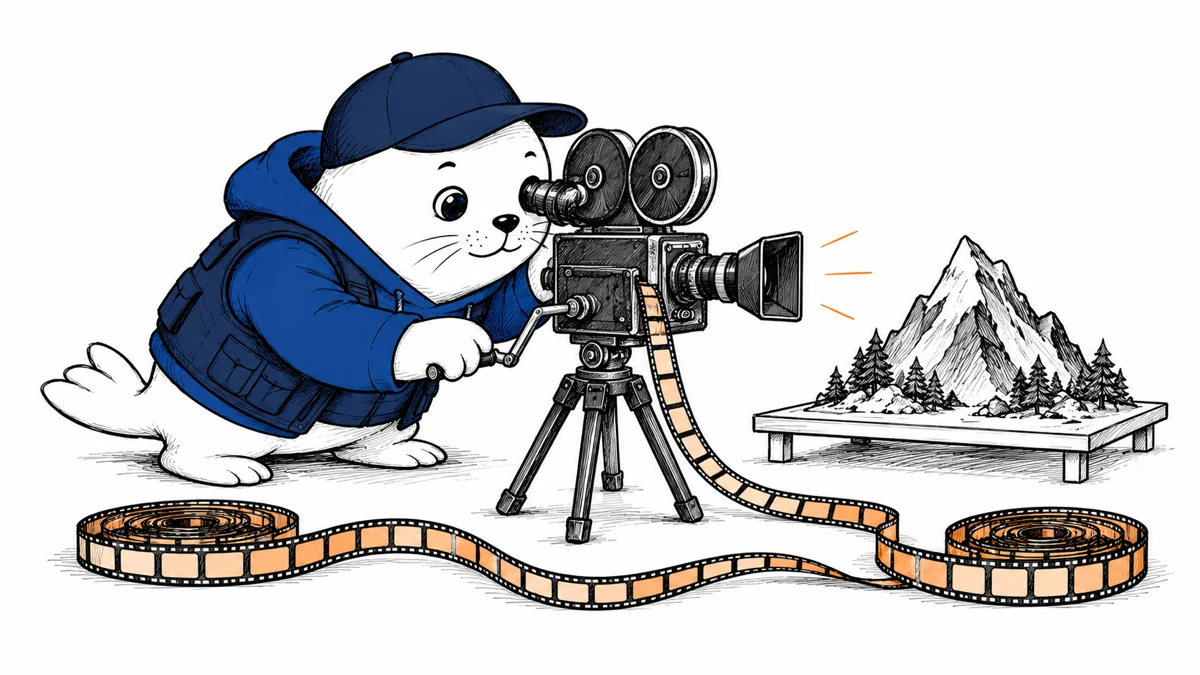
A video can play at 24 frames per second while taking much longer to generate. Measure elapsed generation time and retained history when assessing an interactive workflow.
October 24 brings a specific model export
Tencent’s Hy-Nomas Diffusers repository provides BF16 components for video generation with text and camera conditioning. Its commit history records the October 24 upload.
This is a new conversion and integration artifact. It does not establish that the underlying Hy-Nomas model first launched on that date.
The documented workflow uses a custom pipeline and a specific Diffusers fork and branch. A generic installation instruction displayed by a model hub should not replace the model’s own usage section.
Keep the native and Diffusers configurations separate
The Diffusers export includes its transformer, text encoder, tokenizer, scheduler, and video decoder. The model card distinguishes those components from additional native assets.
This export does not include the separate Nomas-PE prompt-enhancement service or native quantized variants. The native INT8/FP8 RTX 4090 setup therefore cannot meet the BF16 pipeline’s memory requirement.
The license file places released Tencent material under Apache 2.0 while retaining applicable third-party component terms.
Four denoising steps do not establish real-time speed
The example uses four denoising steps, a 704×1280 frame size, and 24 FPS playback. The card explicitly distinguishes playback rate from generation speed.
It also retains attention history across video segments. A longer interaction can therefore use more cache memory than a short initial sample.
Record the runtime, device, precision, and number of segments beside any speed result. Otherwise, a fast quantized demo and a BF16 export can appear to describe the same deployment.
Start with two segments and one camera instruction
I would use a simple scene with one identifiable object. Request a small camera movement in the second segment while keeping that object’s appearance stable.
- Record the exact pipeline branch and model revision.
- Check whether the camera movement follows the request.
- Inspect object identity and scene continuity between segments.
- Measure elapsed time and peak memory for each segment.
- Extend the same scene and record how retained history changes memory.
Do not infer physical correctness from visual continuity. A scene that looks plausible can still change object relationships or invent details when the camera turns.
The EVOKE article examines a different approach to video memory. Our analysis of the Gemini Omni workflow also separates a model’s capability from the full production workflow.
Sources
- Diffusers model card and runtime limits
- Dated upload history
- Native model and additional artifacts
- Tencent and third-party license terms
How much time and memory does the next video segment add to your actual workflow?
Checked October 25, 2026. Prepared with AI-assisted research and drafting, with claims checked against the linked sources. MustHave.ai has not performed the proposed product tests.