

You want motion for your content but you don’t have a camera crew, a studio, or three hours to edit. That’s exactly the gap Grok Imagine Video fills, turning a sentence or a single image into a short, sound-on clip. Used with a clear head about its limits, it’s a genuinely useful shortcut.
What Grok Imagine Video actually is
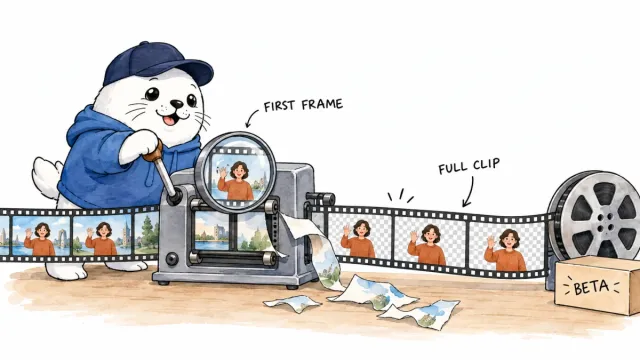
First, a clarification, because people conflate this with the Grok chatbot: Grok Imagine is a separate, dedicated tool for generating images and video. It’s built on xAI’s Aurora engine, and it does both text-to-video and image-to-video, meaning you can start from a written prompt or bring your own still photo and set it in motion.
The current version (1.5) produces 720p clips at 24 frames per second, with native audio baked in, in lengths of roughly 6 to 15 seconds. When it launched, it jumped straight to the top of an image-to-video leaderboard, ahead of well-known rivals like Google’s Veo and Seedance. In plain terms: this is a real contender, not an afterthought bolted onto a chatbot.
What it’s genuinely good for
Let’s be honest about the sweet spot, because that’s where you’ll actually get value. Short, punchy, sound-on clips are perfect for:
- Hooks and cold opens, the first three seconds that decide whether someone keeps watching.
- B-roll and transitions, motion to break up talking-head footage or slides.
- Product fantasy, showing a concept in motion before a prototype even exists.
- Image-to-video, animating a product mockup or a still you already made into a scroll-stopping clip.
That last one is the quiet superpower for sellers: generate a clean product image, then let Imagine turn it into a short showcase video. No shoot required.
Where it stops (and why that’s fine)
Now the guardrails, because “AI video” oversells itself constantly. These are short clips, seconds, not scenes. At 720p they’re great for social feeds but not a replacement for high-end production. And like all generative video, faces and fine details can wobble, so scrutinize before you publish.
Most importantly: this doesn’t replace the moments where you are the product. Your face on camera, a real client testimonial, an actual demo, those build trust that a generated clip can’t fake. Use Imagine for the connective tissue, not the handshake. My rule stands: if the comments say “looks fake,” that’s data, tighten the prompt or go hybrid.
Prompt it like a director
The quality jump comes from specificity. Don’t type “a nice product video.” Brief it like a shot: subject, camera move, lighting, mood, and length. “Slow push-in on a matte black bottle, soft morning light, condensation, calm mood, 8 seconds” beats a vague wish every time. Generate a few variations, keep the best, and cut it into your edit.
For the builders: there’s an API
One more thing worth knowing if you’re technical. xAI exposes Imagine as an API, so you can embed text-to-video and image-to-video generation directly into your own products, campaigns, or automation workflows, with usage-based pricing. That opens the door to generating product clips at scale, a real edge if you run a store or a content operation.
The takeaway: Grok Imagine Video is a fast, capable way to add motion without a crew, as long as you treat it as a sketchbook with jet fuel, not a replacement for the real footage only you can shoot.
A product-clip prompt you can copy
To get a usable product clip on the first try, brief it like a director instead of typing a wish. Start from a still in Ideogram or Midjourney, then in Grok Imagine describe the motion precisely: “slow push-in on [product] on [surface], soft [time-of-day] light, shallow depth of field, subtle steam or condensation, calm mood, 8 seconds”. Naming the camera move, the light, and the length is what separates a clean eight seconds you can cut with from a jittery mess. Generate a few, keep the steadiest, and drop it straight into your edit.
What would you animate first, a product shot, a channel intro, a concept clip? Tell me in the comments and I’ll suggest how I’d prompt it.
Verification sources and related guides
Primary reference: SpaceXAI announcement for Grok Imagine Video 1.5. This is an official provider source. Treat performance, adoption, and product claims as company-reported unless the article identifies an independent check.