
Runway’s new frame-rate converter is inexpensive enough to test broadly, but interpolation errors still make visual review mandatory.
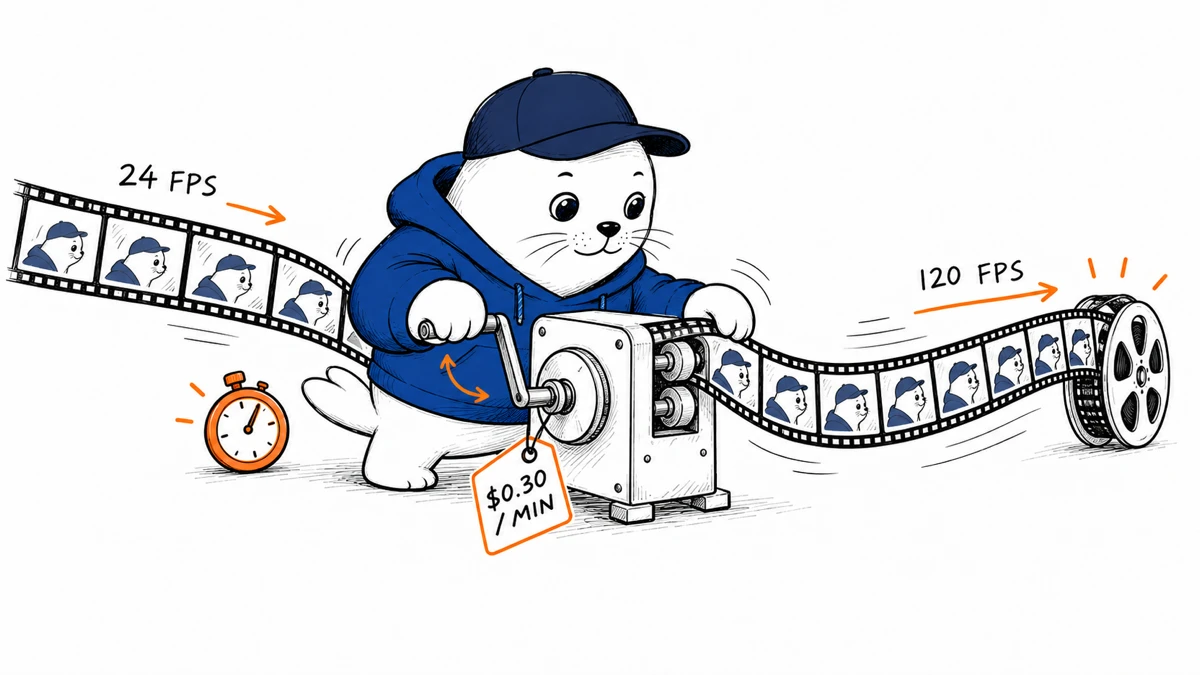
Runway Enhance Frame Rate arrived on Runway Dev on September 17, 2026. The API converts an existing video to one of ten target frame rates, including 23.98, 29.97, 59.94 and 120 fps. Inputs can run for up to 300 seconds. Runway bills the tool at one credit for every two seconds of input, which works out to $0.30 for a one-minute clip because one Runway credit equals $0.01.
The cost is based on input duration, not output frames
| Input length | Credits | Approximate cost | Maximum output rate |
|---|---|---|---|
| 10 seconds | 5 | $0.05 | 120 fps |
| 30 seconds | 15 | $0.15 | 120 fps |
| 60 seconds | 30 | $0.30 | 120 fps |
| 5 minutes | 150 | $1.50 | 120 fps |
The calculation is simple: divide the input duration by two and round according to the API’s billing behavior. A higher target frame rate does not change the listed price. That separates this tool from Runway’s creative video upscaler, which is billed per output frame and can become more expensive when frame boosting increases the number of generated frames.
The endpoint and accepted frame rates
The converter runs through POST /v1/video_upscale with model: "enhance_frame_rate". Runway documents these targets: 23.98, 24, 25, 29.97, 30, 48, 50, 59.94, 60 and 120 fps. The fractional broadcast rates use API values such as 23_98, 29_97 and 59_94.
{
  "model": "enhance_frame_rate",
  "videoUri": "https://example.com/input.mp4",
  "targetFps": "59_94"
}
Use an authenticated upload or a short-lived URL in production. Do not place private source footage at a public address merely to satisfy an API input field. Runway’s input, upload and retention rules should be reviewed with the same care as the visual output.
Frame interpolation is not the same as motion capture
A converter creates intermediate frames between frames that already exist. It cannot recover a hand position, facial expression or object boundary that the camera never captured. Fast motion, occlusion, strobing lights, thin geometry and hard scene cuts are where synthesized frames can bend, double or briefly invent detail.
- Faces: inspect eyes, teeth, glasses and hair during head turns.
- Hands: review finger count and object contact frame by frame.
- Text: check signs, subtitles and product labels for warping.
- Cuts: make sure the converter does not blend two shots together.
- Motion blur: compare whether the new frames look smooth or unnaturally sharp.
- Audio: verify duration, sync and container metadata after processing.
A practical acceptance test for 24 to 120 fps
Start with a 10-second sequence that contains a pan, a face, hands, text and one clean cut. Convert the same source to 48, 60 and 120 fps. Review at normal speed, half speed and frame by frame. A higher number is not automatically better. The 120 fps version creates more places for an interpolation error to appear, and many delivery platforms will reduce the frame rate again.
| Gate | Evidence | Pass condition |
|---|---|---|
| Cadence | Frame timestamps and playback trace | No duplicate or unevenly spaced frames |
| Visual continuity | Slow-motion inspection | No double edges or object morphing |
| Scene cuts | Frames around every cut | No cross-shot blending |
| Audio sync | Clap, lip movement or timecode | Sync stays stable through the full clip |
| Delivery | Target platform upload | Platform preserves the intended cadence |
When 120 fps is useful
The strongest use is slow-motion delivery from footage that has acceptable source motion and no severe occlusion. It can also make high-refresh product demos, game footage and interface captures feel smoother. For ordinary web video, 60 fps is often the more practical ceiling because file size, encoding time and playback support matter more than the largest available setting.
Teams comparing broader generation costs can use our AI video cost guide. Our Runway Solaris production test covers a separate generated-video workflow where camera consistency and controllability matter more than interpolation.
The production recommendation
Use Runway Enhance Frame Rate as a post-processing option, not an automatic publishing step. Keep the original asset, record the target rate and API version, and store the review result beside the converted file. At $0.30 per input minute, the API cost is small. Human review is the expensive part, and it is also the part that catches the failures viewers notice.
Budget the review by shot rather than by finished-minute cost. A five-minute talking-head clip with stable framing may need only a focused pass, while a 20-second action montage can contain dozens of cuts, reflections and overlapping objects. Preserve a side-by-side proxy of the source and converted versions so a reviewer can identify whether a defect came from the original footage, the interpolation step or the final encode. If the delivery platform transcodes uploads, test the published version too. Passing the local master does not prove that the viewer will receive the same cadence.
Primary sources
Checked September 21, 2026. Prices and limits can change, so production systems should read the current API documentation at request time.