

Sponsorship example
How to set up failure alerts in n8n
Set up one alert for multiple n8n workflows, test it with a deliberate failure, and check for duplicate records before you retry.
An unpaid demonstration by MustHave.ai ·
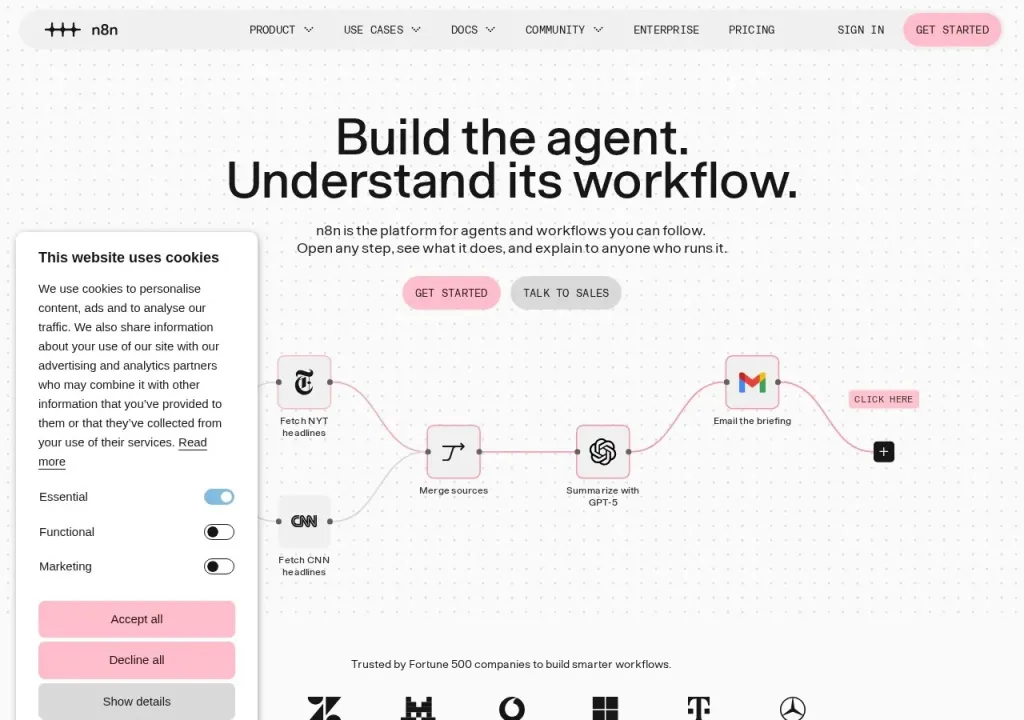
A lead form can look fine to a visitor even when the automation behind it breaks. If the workflow saves the lead but fails before sending a confirmation, you need to know what ran before you decide whether to retry.
Set up one error workflow
Create a separate workflow in n8n and start it with an Error Trigger node. Add an email or team chat step and save the workflow. In the settings of the workflow you want to monitor, select it under Error workflow. You can reuse the same error workflow for other automations.
Put the workflow name and error message in the alert. Include the execution URL when it is available. n8n may omit it when the trigger itself fails or when the execution is not saved, so make sure the alert is still useful without it. The Error Trigger documentation shows the fields for both kinds of failure.
Make one test fail on purpose
Use a test workflow with an automatic trigger, such as a webhook called through its production URL with dummy data. Add a Stop And Error node, then check that the alert reaches the right inbox. Running the workflow manually in the editor will not trigger the error workflow.
Check what was written before retrying
If the CRM already has the lead, a retry could create a duplicate. Use the original form submission ID to look up the lead or update it if it already exists. Then check whether the confirmation was sent before you run that step again.
Visit the official n8n website.