
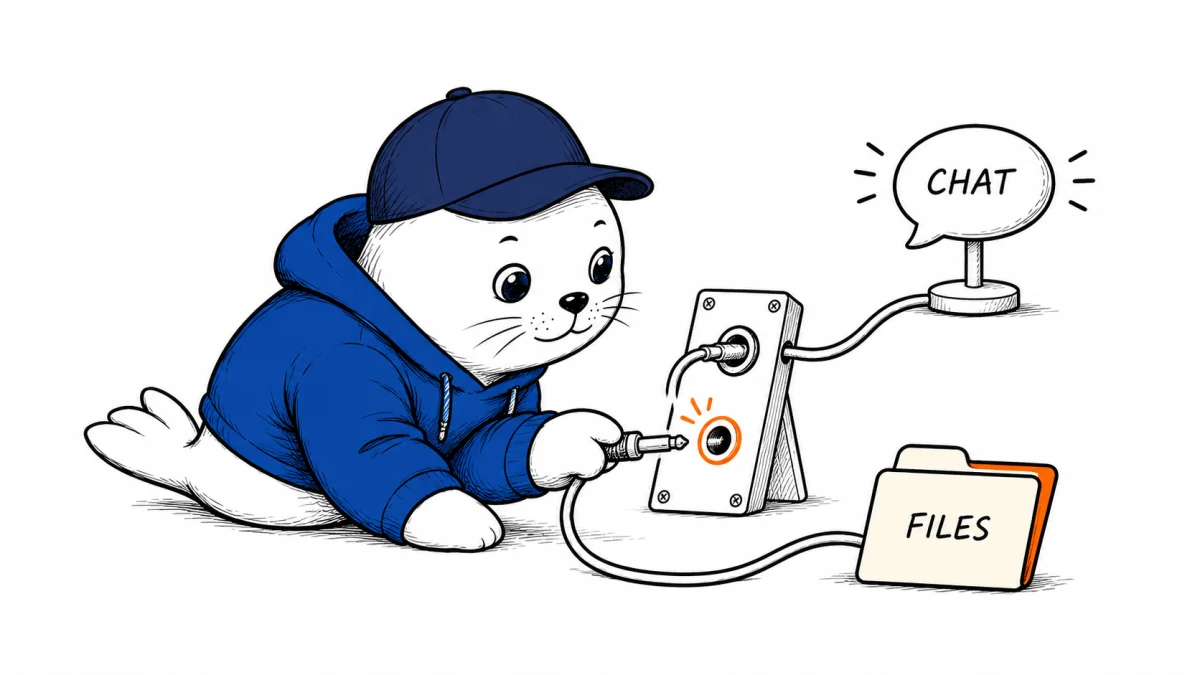
When Copilot starts answering again, ask it for a work document you can verify before you rely on it for an inbox or project summary.
Microsoft’s November 12 outage disrupted Microsoft 365 Copilot, along with Outlook, Teams, and other workplace services. Under incident MO1550821, Microsoft described two kinds of Copilot trouble. Some users could have difficulty opening Chat or getting a response. Others could have trouble retrieving work data such as email, calendar entries, and files. Microsoft incident updates relayed by the University of Pennsylvania.
Updated .
Microsoft’s public status page still listed Microsoft 365 service degradation in its 17:57 UTC update on November 13. Microsoft had reported that mail queues were nearing normal levels, though intermittent access and delivery delays could continue. If you depend on a Copilot summary of recent mail, verify that Outlook has received the message you expect before asking Copilot to summarize it. Microsoft service health and Associated Press reporting on Microsoft’s recovery updates.
Why an answer can come back before your files do
Microsoft tied the broader disruption to features that interact with Exchange Online, its hosted mail and calendar service. Its notice said files stored directly in SharePoint Online could remain available even when features that depend on Exchange were affected. If you can open a file from its SharePoint link, you can use the original to check what Copilot retrieves. Microsoft’s affected-service breakdown.
Copilot’s access to work data also depends on the plan and where you open it. Microsoft documents web and user-provided context in Copilot Chat, with some app-specific access. Licensed Microsoft 365 Copilot can use organizational content through Microsoft Graph and Work IQ. Run a recovery check using the same work account and app that normally handle the task. Switching to a different account or experience can change what Copilot can retrieve. Microsoft’s Copilot Chat documentation.
How to check Copilot recovery
Use a harmless prompt and a known work item you already have permission to open. Choose a file or message with a short detail you can confirm in the original. If someone on your team has a different license or works in another region, have them run the same check with an item they can access. These are suggested checks for your organization.
| Check | What to try |
|---|---|
| Chat responds | Send a plain prompt that needs no web or company data. Check that an answer arrives. |
| File retrieval works | Ask for a detail from a known file without uploading it. Open the cited file and verify the detail. |
| Mail or calendar retrieval works | Ask for a detail from a known message or event. Verify it in Outlook using the same work account. |
If the plain prompt works and the work prompt fails, open the original in SharePoint or Outlook first. When the original opens and Copilot still fails, record the time, app, exact error, and whether it worked before the incident. When the original also fails, tell IT which service you tried and whether it opened at all. A delayed inbox may also be missing recent messages, so check the timestamp on the latest one you can see before asking for a recap.
Where to check your organization’s status
Administrators can open Health → Service health in the Microsoft 365 admin center and look for MO1550821. Microsoft also published updates on its public status page because some administrators had trouble reaching the dashboard. If your team relies on a daily Copilot summary, use the underlying source to check it before you resume sending it. Microsoft’s service health instructions.

Abdessalam Alaoui
I'm Abdessalam Alaoui, founder of Musthave.AI. I write practical guides to AI models, tools, generative media.